As an Amazon Associate, we earn from qualifying purchases. Some links on this site are affiliate links at no extra cost to you. Our recommendations are based on thorough research and editorial judgment.


Calibrating Your Monitor for Accurate Color Reproduction

Calibrating our monitor is essential for accurate color reproduction. We should use tools like a colorimeter, such as the X-Rite i1 Display Pro, and calibration software to create ICC profiles. Before starting, let’s warm up the monitor for 20-30 minutes. Aim for a brightness of 80 to 120 nits for best results. Regular recalibration every 2-4 weeks keeps colors consistent. With this process in mind, we’ll explore troubleshooting common calibration issues next.
Key Takeaways
- Regularly recalibrate your monitor every 2-4 weeks for optimal color accuracy and reliability.
- Use a quality colorimeter and calibration software to create accurate ICC profiles.
- Warm up your monitor for 20-30 minutes before calibration to ensure accurate readings.
- Adjust brightness to a range of 80 to 120 nits for ideal viewing conditions.
- Check and reset monitor settings, including RGB values, to resolve any color discrepancies.
Why Calibration Is Essential for Accurate Color Reproduction
You may be interested
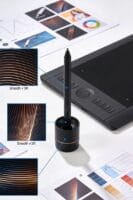


Have you ever looked at your photos or designs and thought the colors just didn’t pop the way you expected? You’re not alone. Even the tiniest misalignment on your monitor can throw everything off balance when it comes to color accuracy. Regular calibration is a must if you want to see true colors on your professional monitors.
Calibration creates ICC profiles that play a vital role in color management. They help synchronize the colors between your monitor and printer, especially when dealing with different color spaces like RGB and CMYK. Without calibration, colors can shift depending on changes in lighting or as your monitor gets older, which can really mess with your designs and photos.
So, how often should you calibrate? It’s best to do this every 2-4 weeks to keep potential color drift at bay. The good news is that with better calibration, your color gamut increases. That means you get to enjoy vibrant and accurate colors that enhance your projects just the way you want them.
Truth is, taking the time to calibrate your monitor can make a significant difference in the visual results you achieve. It’s that simple. When was the last time you calibrated yours? Maybe it’s time to set a reminder!
For artists working with physical mediums, understanding color variety can also improve the consistency between digital work and painted pieces.
Essential Tools for Monitor Calibration
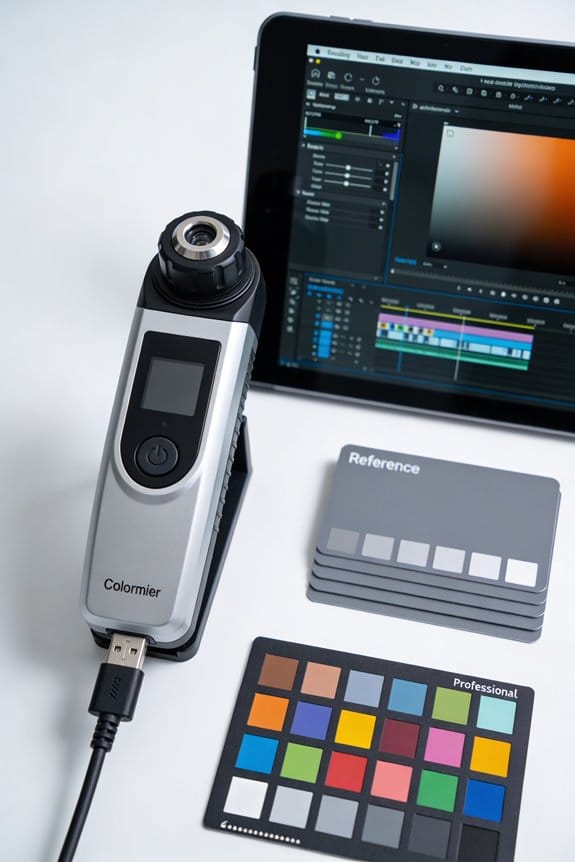
Getting your monitor calibrated right is no joke if you want your colors to pop and look true to life. But how do you make sure your screen is showing accurate colors? First off, get yourself a good colorimeter – tools like the X-Rite i1 Display Pro or the Datacolor Spyder are solid choices. These little devices measure colors really accurately, ensuring what you see on screen is what you’ll see in print or other mediums.
Calibration software can also be a lifesaver. Programs like Calibrite or DisplayCAL walk you through the calibration process, step by step. They even create an ICC profile specific to your monitor’s features. So, why does this matter? Because a properly adjusted monitor can save you a ton of headaches down the line.
Before diving straight into calibration, try adjusting your monitor settings manually. Use test patterns to fine-tune gamma and contrast. Sometimes, a few tweaks here and there can make a big difference in how your colors come out. If you’re a pro working with visuals, consider investing in a monitor with a wide color gamut. This lets you see more detail and make better decisions about your work.
Don’t forget, keeping your monitor calibrated isn’t a one-and-done deal. Regular recalibration every 2-4 weeks helps maintain that accurate color reproduction you need. Truth is, the more often you calibrate, the more reliable your colors will be.
In a nutshell, use the right tools and make a habit of recalibrating. Also, remember that different surfaces and mediums can affect color appearance, so testing on small areas can help ensure consistency across your final output. Have you checked your monitor’s settings lately? You’d be surprised at how much a little adjustment can change your work!
Step-by-Step Guide to Monitor Calibration
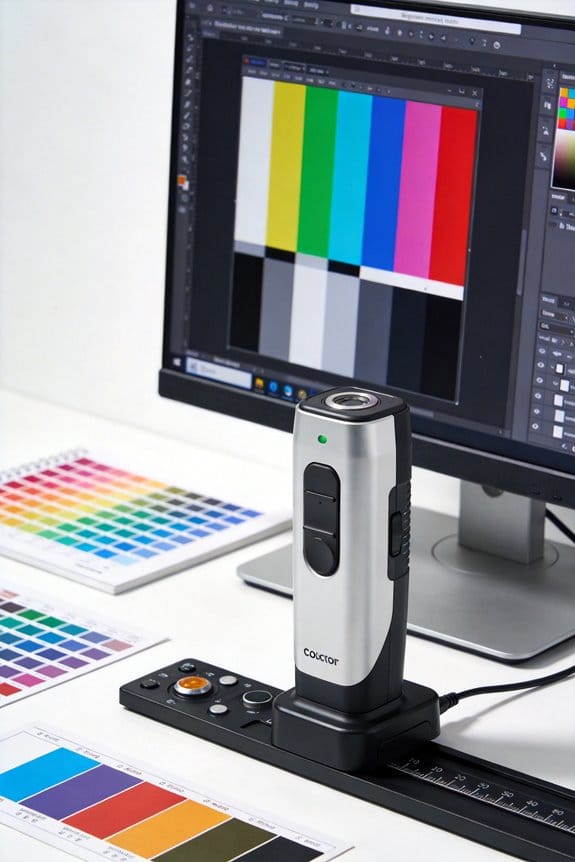
Calibrating your monitor can feel like a daunting task, but it’s actually pretty simple and can make a world of difference for your viewing pleasure. Ever wonder why your screen doesn’t look quite right? One of the first steps you should take is to let your monitor warm up for about 20-30 minutes. This ensures that the readings you get are accurate.
Next up, grab a calibration device—think colorimeter or similar—and you’re on your way. You’ll be adjusting those RGB values and creating ICC profiles for your display. Here’s the trick: open the calibration software you have and follow the steps to get everything just right. Pay special attention to your gamma settings, brightness, and color balance. You should be shooting for a brightness range between 80 to 120 nits, which works well for most editing setups.
Now, let’s not forget the importance of consistency! Truth is, monitors can start to drift over time, which affects both color accuracy and performance. To sidestep any surprises, re-calibrate your monitor every 2-4 weeks. For maintaining overall visual harmony in your workspace, consider the aesthetic appeal of your surroundings alongside monitor calibration.
Troubleshooting Common Calibration Issues
Calibration issues can be a real headache, can’t they? You think you’ve got your monitor all set, but then the colors just don’t look right. First off, make sure you’ve warmed up your monitor for about 20-30 minutes. Believe it or not, the temperature plays a big role in how accurate your colors will be. If you’re still having trouble, check if your calibration tool is properly connected; sometimes, driver issues get in the way of detection.
Next, take a look at the color profiles in your operating system settings. Conflicts can happen here and mess up your color settings. If the colors still seem off after that, it might be time to fiddle with the brightness settings or just reset the monitor to factory settings.
Don’t forget to consider the lighting in your room, too. Seriously, too much bright light or not enough can completely change how colors look on your screen. So, why does this matter? Getting your monitor calibrated right can save you a lot of frustration down the line, especially if you’re working on projects where color accuracy is key.
Working through these steps will give you the best shot at achieving accurate colors. Remember, calibration isn’t a one-and-done deal; keep an eye on those settings. What’s your biggest struggle with getting your monitor just right? Additionally, utilizing a consistent lighting environment can greatly enhance the reliability of your calibration process.
How to Keep Your Monitor’s Colors Accurate
Have you ever noticed your monitor colors looking off? If you’re doing any kind of visual work, maintaining accurate colors is super important. To keep your monitor’s colors in check, it’s a good idea to recalibrate it every 2 to 4 weeks. Trust me, this can make a world of difference.
Try this: use a calibration program along with a colorimeter. This combo will help you create precise ICC profiles, which means you can adjust those color levels just right. Don’t forget to check the RGB settings, brightness, and contrast too. Aim for a luminance between 80 and 120 to get that sweet spot for your editing environment.
Honestly, getting the color temperature right is crucial, especially if you’re working within the sRGB color space. And there’s more! Keeping your monitor’s firmware updated and double-checking your refresh rate can help you maintain color accuracy across different apps, especially when you’re on Windows. For preserving color fidelity in your physical artwork, consider using acid-free protection materials like acid-free mat boards.
Frequently Asked Questions
How Do I Calibrate My Monitor for True Colors?
Did you know 90% of designers rely on color accuracy? To calibrate our monitors for true colors, we must use hardware calibration devices, monitor calibration software, and make ambient light adjustments for ideal brightness and gamma settings.
How to Calibrate Monitor Colors to Match?
To match monitor colors, we should use calibration tools to adjust gamma settings and contrast. By utilizing software options and hardware calibration, we can optimize color profiles based on ambient lighting for our display types.
How to Calibrate Monitor Color for Printing?
Let’s leverage our knowledge on printing precision! Using color management software, we’ll explore RGB vs CMYK, assess monitor types, and apply calibration hardware options for ideal display settings amidst ambient lighting effects. Regular adjustment’s key!
How to Correctly Calibrate a Monitor?
To correctly calibrate a monitor, we should use calibration tools like sensor devices, adjust hardware settings like brightness and contrast, configure software settings for color profiles, and consider ambient lighting for ideal display types.


