As an Amazon Associate, we earn from qualifying purchases. Some links on this site are affiliate links at no extra cost to you. Our recommendations are based on thorough research and editorial judgment.

Raster vs. Vector: When to Use Which Format

When we decide between raster and vector graphics, we should consider their unique strengths. Raster images, made of pixels, are best for detailed photos or digital paintings but lose quality if resized. On the other hand, vector graphics use mathematical paths, allowing us to resize them without loss of clarity, making them great for logos and technical illustrations. By understanding these differences, we can choose the right format for our projects. Let’s explore more about this!
Key Takeaways
- Use raster images for detailed graphics like photography or digital paintings where texture and rich color are essential.
- Opt for vector graphics when designing logos or illustrations that require scalability and clean lines without quality loss.
- Consider file size: raster images can become large at high resolutions, while vectors typically have smaller file sizes.
- Choose raster formats for print pieces needing high detail, and vector formats for branding materials that may need adjustment.
- Convert raster to vector using tools like Adobe Illustrator’s Image Trace for scalable designs while preserving original file quality.
Understanding Raster vs. Vector Graphics: Key Differences
You may be interested


When it comes to creating graphics, you might find yourself stuck deciding between raster and vector formats. Have you ever resized an image only to see it get all pixelated and fuzzy? That’s the problem with raster graphics. They’re made up of tiny pixels, and while they can capture intricate details—like the colors and textures in a photograph—they lose quality when resized. Popular raster formats include JPEG, PNG, and GIF, each with its own strengths and weaknesses.
Now, let’s flip the coin and talk about vector graphics. These are a whole different ball game. They use mathematical equations to create images, which means they can be resized to any scale without losing clarity. This makes them perfect for things like logos and illustrations. Vector files, such as AI, EPS, and SVG, are usually lighter because they just store instructions on how to draw the image rather than the image itself.
So, why does this matter? If you’re working on a logo that needs to be printed on everything from business cards to billboards, vector is the way to go. Conversely, if your project needs high-quality images—like a website full of stunning photos—raster is probably what you need.
The best part is, understanding these differences can help you choose the right format based on your project’s needs. If you’re still unsure which to use, think about how you intend to use the images and the level of detail you require. It can make a huge difference in the final product. What do you think—do you have a project in mind where choosing the right graphic type could change things? Remember also that vibrancy and clarity in digital and print media can hinge on selecting the appropriate image format.
Choosing Raster Images for Photos and Detailed Designs

Choosing the right image format can really impact your design projects. If you’re working with photos or intricate designs, raster images are usually the way to go. These images are made up of pixels, which makes them great for capturing complex colors and fine details. Formats like JPEG and PNG are common and can deliver high-quality results, but here’s the catch: the quality really hinges on the pixel count.
When you’re looking for finer details, high-resolution raster images are ideal, but keep in mind that they can lose quality when you try to resize them. So, what can you do? It’s all about optimizing them for online use to ensure they load quickly without compromising quality.
Want some quick tips? Here are a few things to remember:
- Always choose a high-resolution image initially.
- If you need to resize, do it carefully to maintain quality.
- Optimize your images for the web to keep loading times low.
Truth is, when you want realistic visuals, picking the right image format matters. Are you ready to level up your design game? Besides format choice, using quality pigments can also greatly enhance the longevity and vibrancy of your color work.
Advantages and Use Cases of Vector Graphics
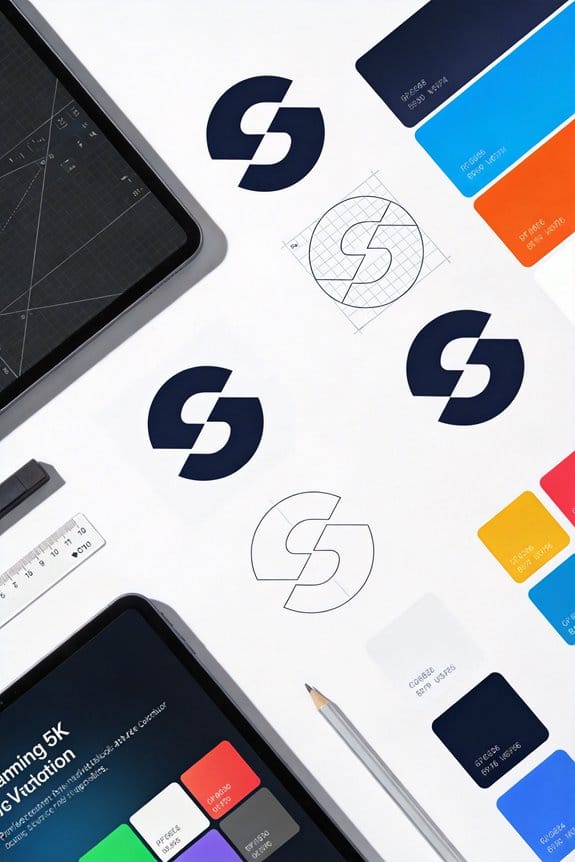
Ever looked at a logo and wondered why it looks so sharp and clear, even when it’s blown up on a billboard? That’s the magic of vector graphics. They’re created using mathematical equations, which means you can scale them to any size without losing that crispness. This makes them a go-to choice for anything branding-related.
One of the best parts is that they take up way less space than traditional photos or intricate images. This can really speed things up when you’re trying to load your website or project. Plus, formats like SVG and EPS work well with popular design tools, so you won’t run into compatibility issues with software like Adobe Illustrator.
When you’re working on a project, the ability to easily edit shapes and colors is a practical feature you’ll appreciate. Honestly, wouldn’t it be great if you could rearrange your designs without starting from scratch? Vector graphics make that simple. They’re also excellent for precision tasks like technical drawings or typography because of their ability to keep lines sharp and clear.
Additionally, using a drawing tablet with customizable shortcut keys can streamline your design workflow when working with vector graphics in software applications.
In a nutshell, vector graphics are perfect for a range of projects, especially when quality and flexibility matter. So, next time you’re tackling a design challenge, consider how vectors can make your life easier. What project have you been putting off that might benefit from using vector graphics?
Recommended Products


Ideal Projects for Raster vs. Vector Formats
Choosing the right format for your design project can feel overwhelming. Ever get stuck wondering whether to go with a raster or vector file? It really matters, especially when you’re aiming for specific results.
If your project demands intricate details or photorealistic textures, you’ll want to lean toward raster formats like JPEG and PNG. They’re fantastic for photography and digital paintings. The beauty of these formats is in their detail, showcasing everything from fine textures to rich colors. But, what if sharpness and scalability are on your checklist? That’s where vector formats, like SVG and AI, come into play.
When you’re aiming for clean lines and easy resizing, vectors are definitely the way to go. These file types maintain quality no matter how large or small you make them, which makes them perfect for logos and typography. Need to tweak something in your branding materials? Using vector graphics means you can make those changes easily without losing any clarity. It’s just more efficient!
In the web design world, balancing both raster and vector images can be crucial. This mix not only helps with loading times but also keeps visuals sharp and high quality. So, why does this matter? Because you want your audience to have a stellar experience when they engage with your content.
Each format has its perks, and using them wisely can make a big difference in your final product. So, as you dive into your next design project, think about what you really need. Are you going for intricate details or clean scalability? Remember, being strategic with your choice will pay off! What’s your go-to format? Also, just as artists select between different acrylic gel mediums to achieve varying finishes and textures, designers must choose file formats that best support their project’s desired visual effects and functionality.
File Size and Quality Comparison
When you’re diving into the world of images, one of the biggest headaches is understanding file size versus image quality. So, why does this matter? Well, if you’re working on a project—whether it’s for your blog, social media, or even a personal scrapbook—the type of image you choose can really make or break your work.
Let’s break it down: Raster images, often called bitmaps, are made up of a ton of tiny squares we call pixels. The more pixels you have, the sharper the image looks. Sounds great, right? But here’s the catch: the higher the resolution, the larger the file size. If you’re dealing with high-res photos, that can chew up a lot of space—definitely something to keep in mind if you’re low on storage.
Now, vector graphics take a different approach. Instead of using pixels, they rely on mathematical equations to create shapes and colors. This means they’re often smaller in file size, which is a big plus when you’re trying to keep your website quick and responsive. Plus, the best part is that you can resize them without losing any quality. Ever tried making a raster image bigger? You know the drill—pixelation everywhere, and it just looks awful.
Honestly, knowing how these formats work can help you make smart choices for your graphic projects. It’s all about weighing your needs against the strengths of each type. Do you need sharp detail for a print piece? Go raster. Working on a logo that needs to be resized for different materials? Vector’s got your back.
Just like choosing the right acrylic paint medium depends on factors like viscosity adjustment to achieve the desired flow and finish, picking the right image format depends on your project needs.
Best Software for Editing Raster and Vector Images
Have you ever found yourself frustrated trying to figure out the best software for editing raster and vector images? If you’re working with raster images, Adobe Photoshop is widely regarded as the top choice. It’s packed with powerful tools that allow for in-depth photo editing, making it perfect for intricate digital design projects that require pixel-level precision. If you’re not looking to spend a fortune, GIMP is another solid option. Plus, it’s free and loaded with robust raster editing capabilities.
When it comes to vector images, Adobe Illustrator is a standout. It gives you the ability to create detailed, scalable graphics with ease. But if you’re after something that won’t cost you a dime, give Inkscape a shot—it’s a fantastic free alternative for vector design. You might also want to consider CorelDRAW; it’s versatile enough to handle both raster and vector editing, which many professionals really appreciate.
Understanding the difference in opacity and finish type is crucial when working with both raster and vector graphic files, as it affects the final visual quality and layering possibilities.
How to Convert Between Raster and Vector Files?
Ever find yourself staring at a beautiful pixel image and wishing you could turn it into a sleek vector file? Converting between raster and vector files can feel a bit daunting, but it’s totally manageable with the right software and a little know-how.
To get started, if you want to transform a raster image into vector format, Adobe Illustrator’s Image Trace feature is a solid option. This tool does a great job of converting pixel data into vector paths, and it’s pretty user-friendly. If you’re using something like Inkscape or CorelDRAW, don’t worry; they’ve got similar tracing features that can do the trick. Just keep in mind that the quality of your new vector file will hinge on how intricate and high-res your original image is.
On the other hand, if you’re thinking of exporting vector files to formats like JPEG or PNG, know that this will rasterize them, which changes everything back into pixels. So, before diving into any conversion, it’s a smart move to save a copy of your original file. That way, you won’t risk losing any of those fine details.
Honestly, knowing how to switch between these formats can be super helpful, especially if you deal with different kinds of images for your projects. So, whether you’re making cool graphics for social media or prepping images for print, mastering this skill can pay off. Many artists also appreciate choosing the right tools and materials, such as a well-designed ergonomic wooden paint palette, to enhance their creative workflow. Why not give it a try?
Recommended Products

★ Quietest Machine with the Largest Embroidery Area: The newest direct vertical guiding system makes the S-1201 Plus commercial embroidery machine achieve the most stable working and the lowest noise. With a 12"x16" Embroidery Area, it offers the largest working space in the world among all machines with fewer than 15 needles.

FOR VET USE ONLY. At just 6.5 cm thick, N60 Veterinary ultrasound machine is designed for easy transport, portable and upgradeable, with Various Veterinary Ultrasound Probe making it ideal for use in various veterinary clinical settings and home visits

This Multi-function OTDR&CCTV Tester is an essential tool for fiber length, network, and CCTV camera testing. OTDR displays the power of the returned signal related to distance. The information can be used to confirm the transmission quality of a fiber optic link. It is widely used in the maintenance, construction, and monitoring of cable lines. It can measure the optical fiber length, transmission attenuation of optical fiber, attenuation of the splice, and failure location, etc.
Frequently Asked Questions
When Should You Choose Vector Instead of Raster?
When we think about logo design, choosing vector graphics brings scalability benefits and superior print quality. It’s perfect for illustration artwork, icon creation, and font rendering—offering graphic flexibility across complex shapes and animations, ensuring software compatibility.
What Is the Difference Between Raster Format and Vector Format?
Raster format uses pixels, affecting image resolution and printing quality, while vector format relies on mathematical equations, offering better graphic scalability, editing flexibility, smaller file sizes, and enhanced design efficiency for various design applications and software suitability.
Is a JPEG a Raster or Vector?
Like a painted canvas, a JPEG’s a raster format. Its efficient image compression offers great file compatibility for web use, but editing limitations and print resolution issues can challenge graphic design scenarios requiring sharp quality and scalability.
Why Would You Convert Between Raster and Vector Data?
We convert between raster and vector data for better image quality, enhanced editing capabilities, and to leverage raster’s advantages or vector’s flexibility. Techniques and software tools help address file size differences and compatibility issues in various use cases.


